
How to Edit a Training Series
Need to make a change to your Training Series? No problem! Admin Managers can update the launch date, upcoming sessions, and training assignments as needed.
There are just a few things to keep in mind, particularly once a session has gone live. Here's everything you need to know about editing your series.
Editing Rules
- Launch date: You can change the series launch date up to 15 minutes before it is scheduled to go live.
- In-progress or completed sessions: Once an individual session has gone live or has been completed, it is locked and can no longer be modified.
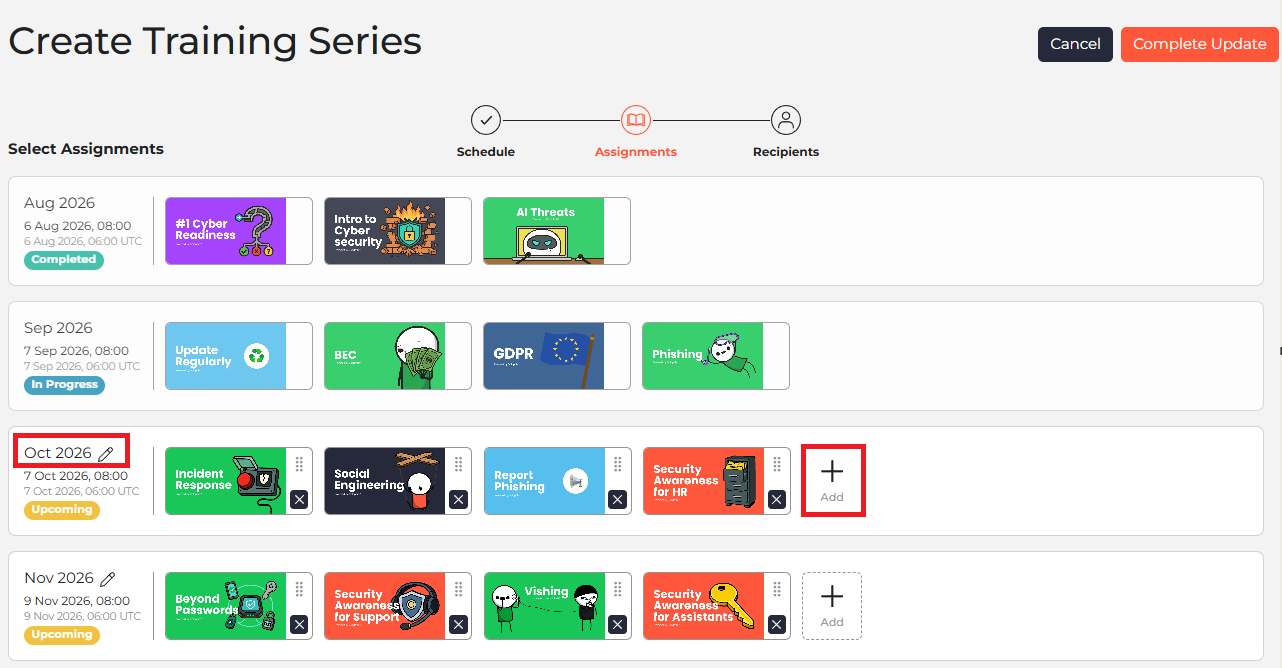
- Upcoming sessions: Upcoming sessions can be edited. Click the Pencil icon next to an upcoming month to adjust the date. You can also use + Add or X on the module cards to add or remove assignments, or drag and drop assignments between sections.
How to Edit or Delete a Training Series
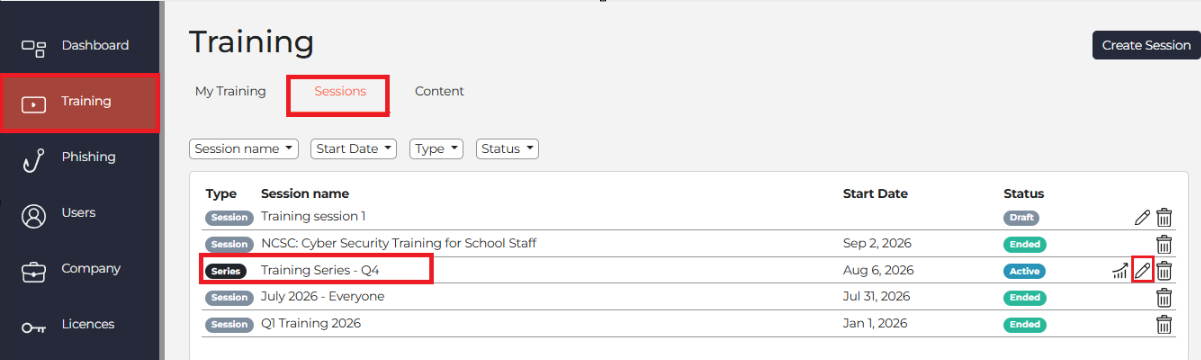
- Go to Training > Sessions in the left-hand navigation menu.
- Find your series in the list. Look for the Series tag to identify it.
- Click the Pencil icon to edit the series, or the Bin icon to delete it.
How to Rename a Training Series
Want to give your existing series a new name? You can update the title without creating a new series.
- Go to Training > Sessions.
- Find your series and click the Pencil icon.
- Click Complete Update in the top-right corner.
- Enter your new series name.
- Click Save Changes.
If you run into any hiccups, click the chatbot icon at the bottom right of your screen; our support team is always happy to help! 😊