
Just-in-Time Training: How to Send Remedial Training to Learners Who Fail a Phishing Simulation

As an Admin Manager, you can assign remedial training to learners to reinforce security awareness when they fail a phishing test (such as clicking a link, opening an attachment, or submitting credentials).
You can choose how and when to deliver this training during the setup wizard for a phishing simulation.
In This Guide
- What Triggers Remedial Training?
- Training Delivery Options
- Available Training Types
- How to Assign Remedial Training
What Triggers Remedial Training?
Remedial training is triggered when a learner "fails" a simulation by directly interacting with a simulated threat, whether they click a link, open an attachment, or submit sensitive information on a landing page.
Training Delivery Options
At the Training step of creating your simulation, you can choose one of three delivery options:
- Just-in-time training (Recommended): The moment a learner clicks or submits info, they are immediately redirected to a remedial training page. This provides quick feedback right when the mistake happens.
- When the simulation ends: When a learner clicks or submits info, they are redirected to a standard 404 error page. Once the entire simulation period finishes, they receive an automated email with assigned training based on the action they took.
- No training: When a learner clicks or submits info, they are redirected to a 404 error page, but no follow-up training or email is sent. (Always use this option when launching a Baseline Test).
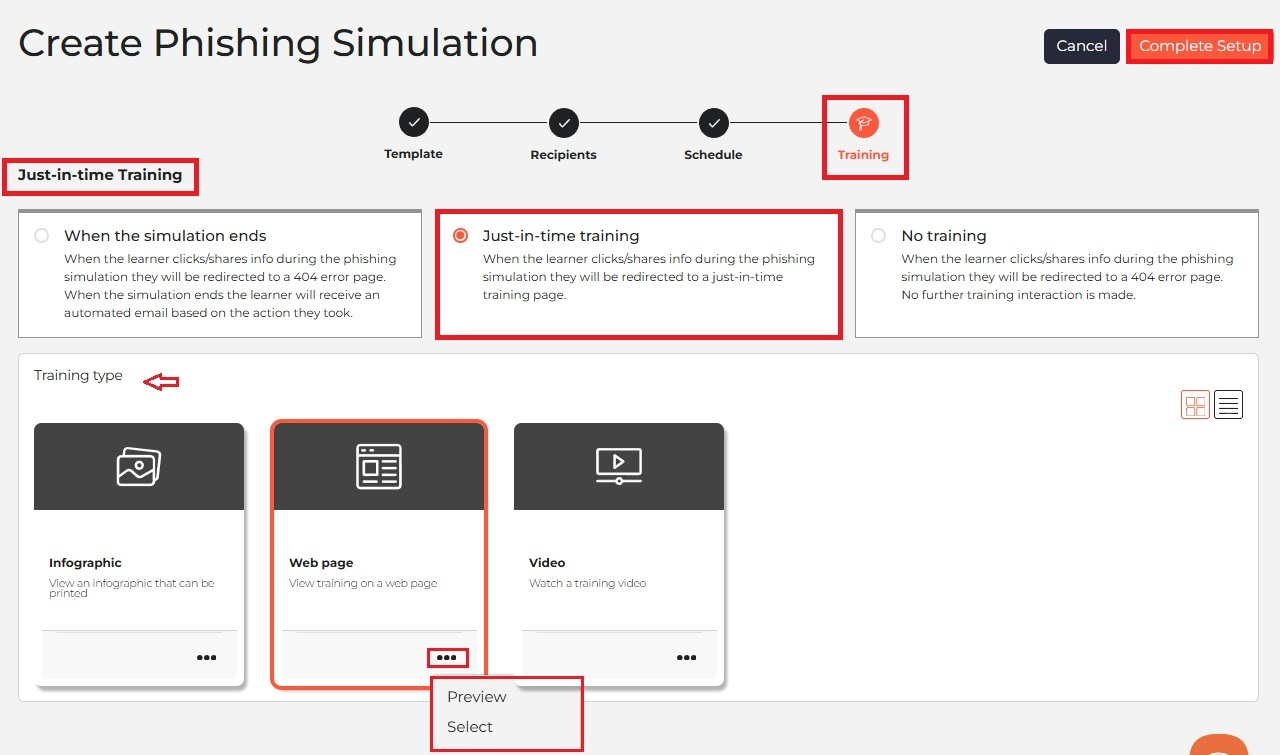
Tip: Click the three dots (... ) on any training card and select Preview to view the content before selecting it for your simulation.
Available Training Types
You can choose from three formats to deliver your remedial training:
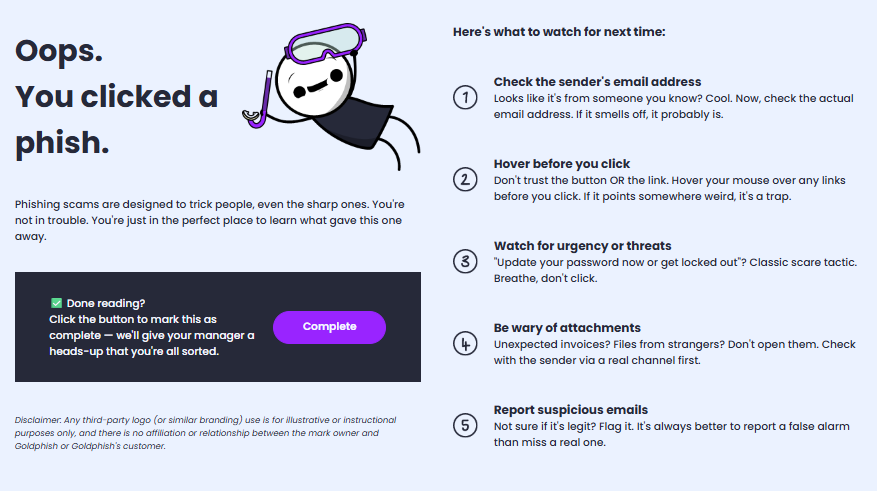
- Infographic: An infographic that learners for learners to read and complete.
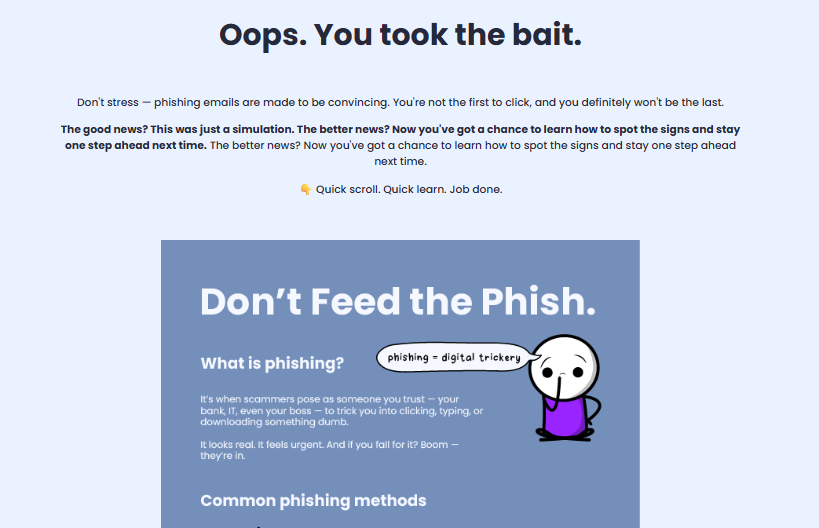
- Web page: Interactive training content displayed on a web page for learners to read and complete.
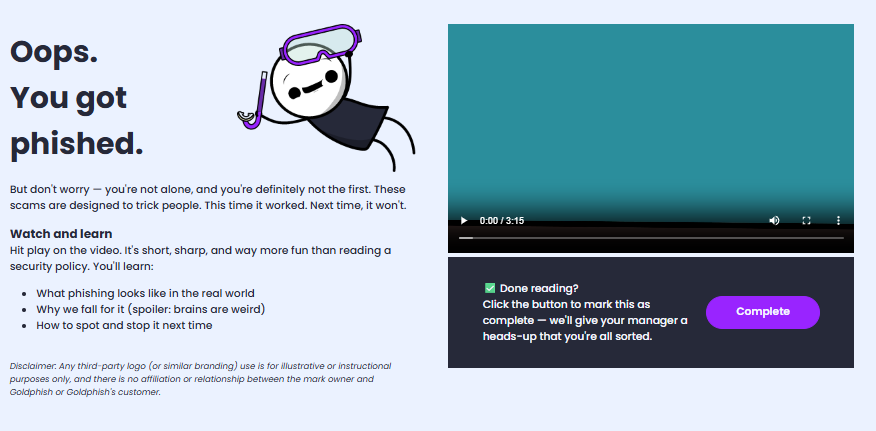
- Video: A short security awareness training video for learners to watch and complete.
How to Assign Remedial Training
- Log in to your Admin Dashboard.
- Navigate to Phishing > Simulations on the left menu.
-
Click Create Simulation.
Work through the setup wizard:
- Template: Choose your phishing email template(s).
- Recipients: Choose your target learners (Everyone, Specific Departments, or Specific Learners).
-
Schedule: Set your simulation timing (Now, Scheduled, or Random Delivery).
At the Training step:
- Select your preferred delivery method (Just-in-time training, When the simulation ends, or No training).
- Choose your preferred Training type (Infographic, Web page, or Video).
- Click Complete Setup at the top right to launch or schedule your simulation.
Need step-by-step guidance on setting up a simulation? See our How to Create a Phishing Simulation guide.
Tracking Trained Metrics & Performance
Once your simulation is active or completed, you can easily track which learners have completed their remedial training:
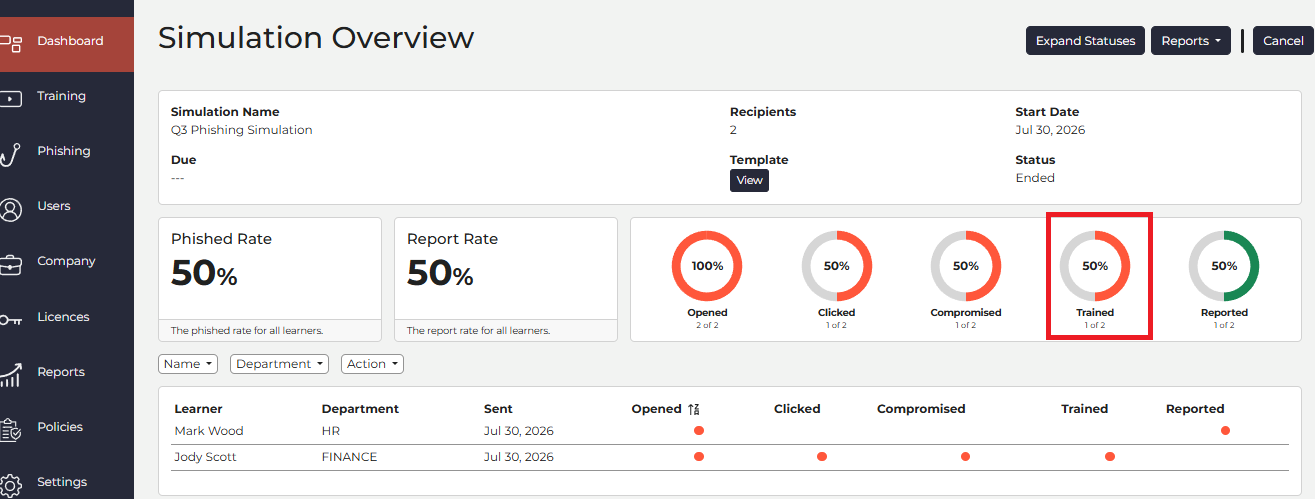
- In the Simulation Overview: Open any simulation page to view the Trained metric card. This shows the real-time percentage and total count of learners who completed their assigned training after failing the test.
- In Downloaded Reports: Click the Reports button on the top right of the Simulation Overview page (or go to Reports > Phishing Simulations) to download a CSV or PDF report detailing individual learner completion dates and training metrics.
Need step-by-step guidance on downloading reports? See our How to Download Reports guide.
💬 Need extra help? If you get stuck at any point, click the chatbot icon in the bottom-right corner to chat with our support team; we’re happy to help!