
Admin Managers'Guide: How to Download Reports

As an Admin Manager, you can generate and download comprehensive reports needed to measure progress, performance, and provide proof of effort for your compliance and regulatory requirements.
This guide walks you through how to access and download Training Session, Training Series, and Phishing Simulation reports.
In This Guide:
- Downloading Reports for Training Sessions
- Downloading Reports for Training Series
- Downloading Reports for Phishing Simulations
Accessing the Reports Section
- Sign in to your Admin Dashboard.
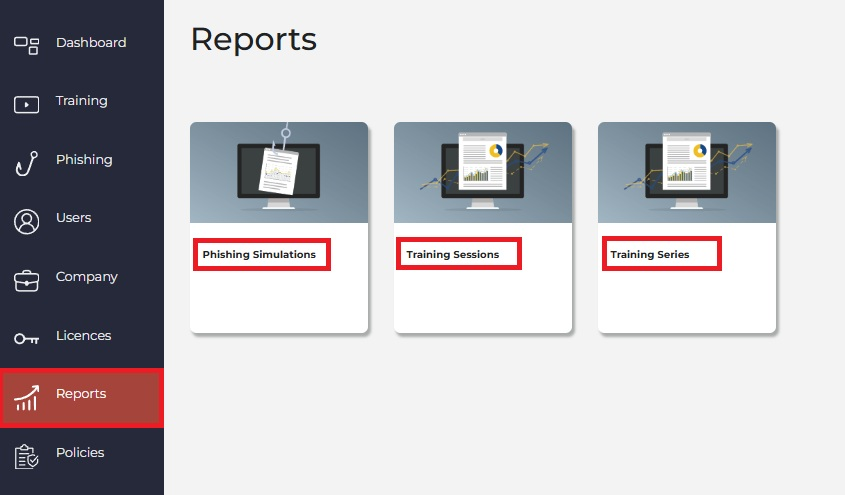
- Navigate to the Reports section on the left navigation menu.
Downloading Reports for Training Sessions
- From the Reports section, click Training Sessions.
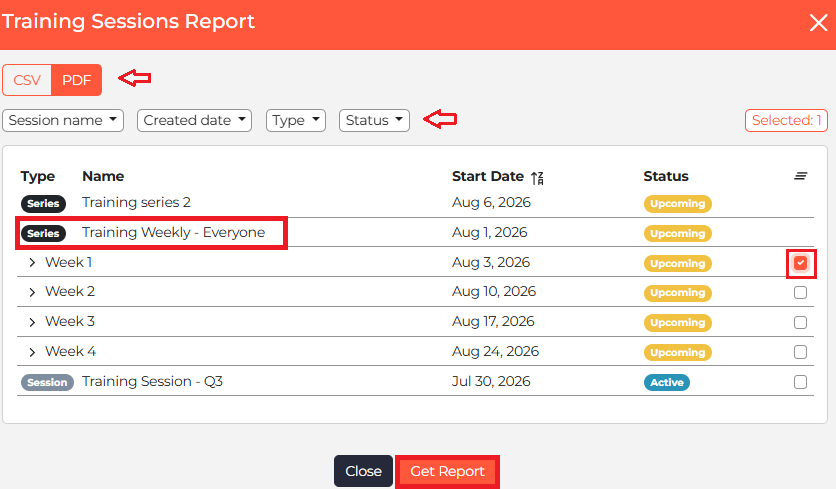
- Select your preferred report format at the top left:
- CSV for data-rich, detailed reports.
- PDF for executive summaries.
- Select the checkbox next to the relevant training session (or select multiple sessions).
- Click Get Report to download.
Downloading Single Session Reports within a Series
- Click on the relevant Training Series to expand its single sessions.
- Select the checkbox next to the relevant single session (or select multiple single sessions).
- Click Get Report to download.
Tips for CSV Training Reports:
- Filter by Department: Need to share progress with department managers without granting full platform access? Download the report as a CSV, filter it by department, and share the filtered file so each manager sees only their team’s progress.
- Identify Incomplete Learners: Pull a CSV report across all sessions or a specific session, then filter the Progress column to quickly identify users who are Not Started or In Progress (filter by any completion percentage below 100%; blank values represent users who haven't started).
Downloading Reports for Training Series
- From the Reports section, click Training Series.
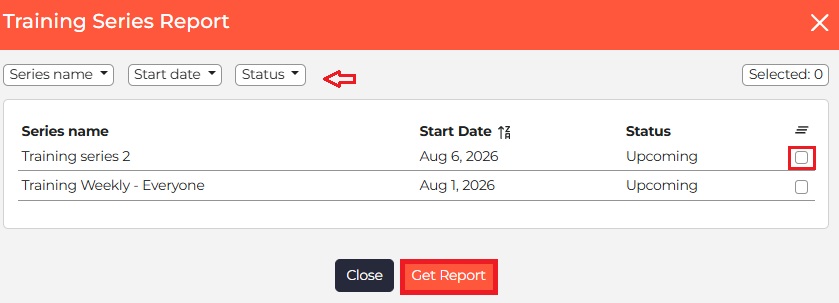
- Select the checkbox next to the relevant training series you want to download (or select multiple/all).
- Click Get Report to download your PDF report.
Downloading Reports for Phishing Simulations
- From the Reports section, click Phishing Simulations.
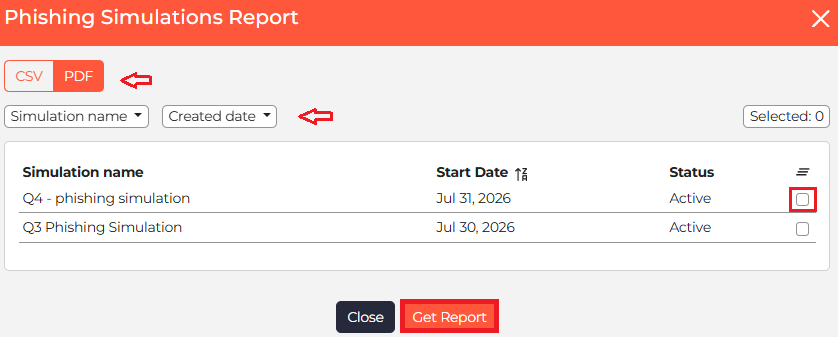
- Select your preferred report format:
- CSV for detailed data.
- PDF for executive summaries.
- Select the checkbox next to the relevant simulation you want to download (or select multiple/all).
- Click Get Report to download your report.
Tip for CSV Phishing Simulation Reports:
- Analyse Risk & Behaviour: Pull a CSV report across all simulations or a specific simulation, then filter the Clicked and Reported columns. This allows you to quickly identify high-risk learners who interacted with phishing links, proactive learners who actively reported threats, and learners who ignored or deleted the email without reporting it.
If you get stuck at any point, click the chatbot icon on the bottom right to chat with our support team - we’re happy to help!😊