
Admin Managers' Guide: How to Create a Training Series
What is a Training Series?
A Training Series lets admins build and schedule a full 12-month security awareness programme all in one go.
Instead of having to log in every month to build, schedule, and send out a new campaign, you can map out your entire annual training plan in one quick sitting.
Once it's set up, the platform takes care of the rest, automatically releasing training throughout the year so you can focus on other things.
In This Guide:
- Step 1. Create Session
- Step 2. Set a Schedule
- Step 3. Select Assignments
- Step 4. Select Recipients
- Step 5. Complete Setup
- How to Edit a Training Series
- Tracking Training Series Progress & Reports
Before you begin: Ensure you've completed the setup steps in our Quick Start Guide before launching your first series.
Watch our Video Tutorial:
Creating a Training Series
Step 1. Create Session
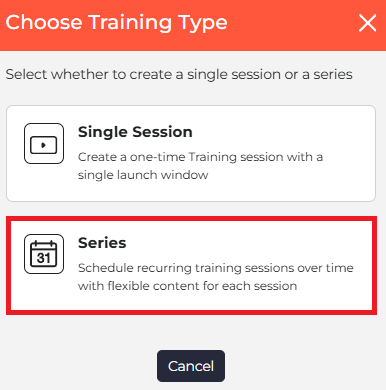
Establish a master start date and time. Individual events automatically launch sequentially into the first available slot, adapting if specific days ( like Thursdays or Fridays) are disabled.
- Sign in to your Admin Dashboard.
- Navigate to Training > Sessions.
- Click the Create Session button (top right).
- Select Series.

Step 2. Set a Schedule
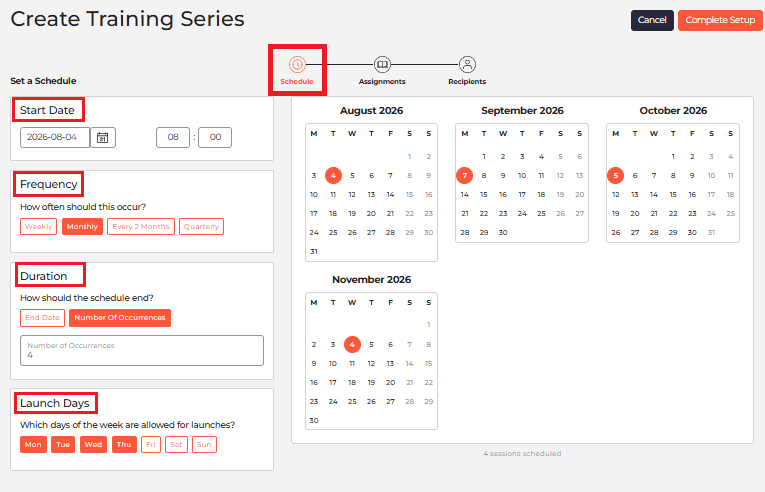
Decide how and when your training rolls out:
- Start Date & Time: Choose when your first session should launch.
- Frequency: Choose how often sessions launch (e.g., Weekly, Monthly, Every 2 Months, or Quarterly).
- Duration: Decide how long your series runs:
- By Occurrences: Set an exact number of sessions (minimum of two).
- By End Date: Set a hard end date, and the system will fit in as many sessions as possible up to that date.
- Launch Days: You can tick or untick specific days (e.g., untick weekends or Mondays). If a launch date falls on a disabled day, the system automatically moves it forward to the next available allowed day.
Note:
- Start Date: Must be in the future - at least 1 day ahead.
- Time Zones: Dates and times follow the local time zone of your computer when setting up the series.
- Concurrent Sessions: Each session runs back-to-back; a new session launches right after the previous one finishes based on your chosen frequency.
Step 3. Select Assignments
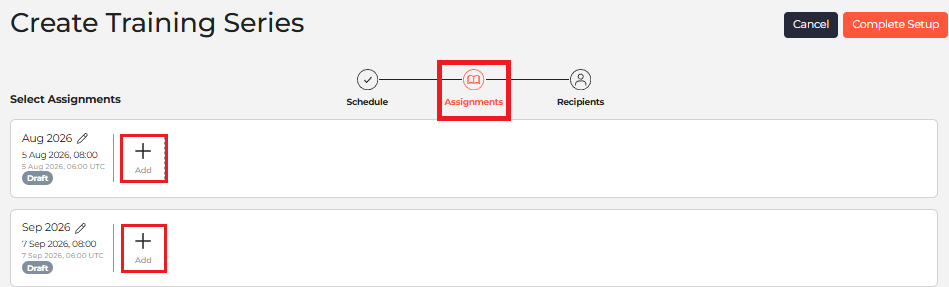
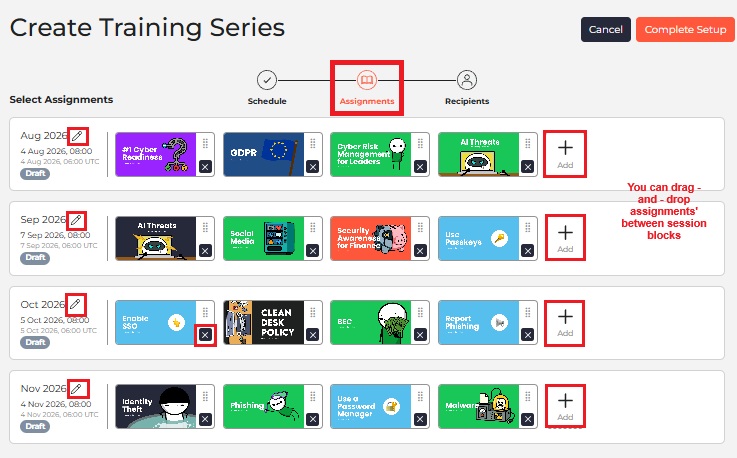
Now it’s time to fill your session blocks with learning assignments!
How to Add & Manage Assignments:
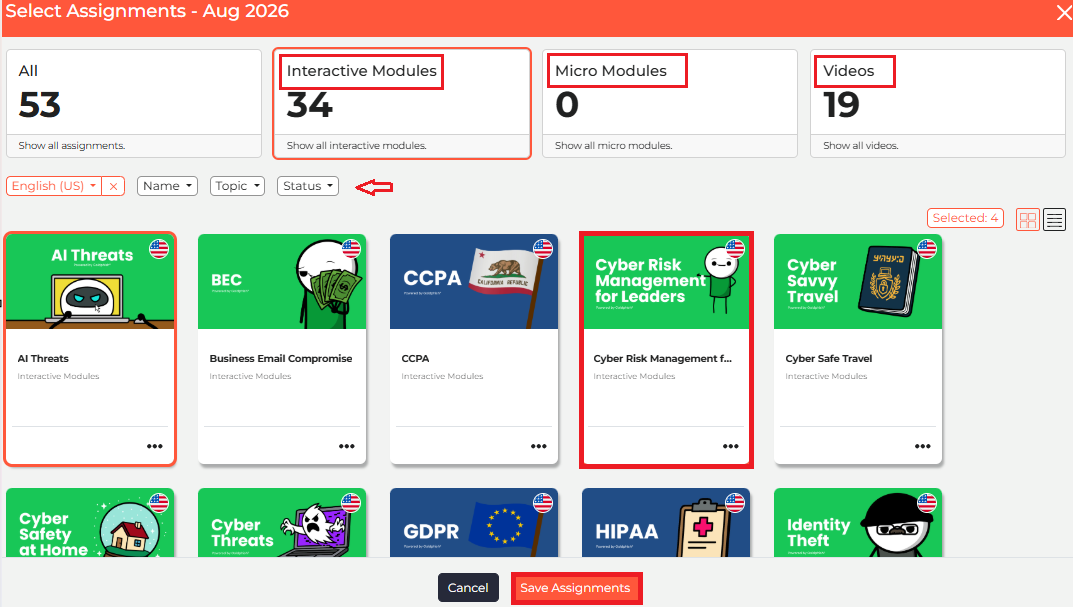
- Click + Add on any session block to open the assignment library.
- Filter assignments by type (Interactive Modules, Micro Modules, or Videos) or use the search filters (Language, Topic, Status).
- Click on the assignment cards to select them, then click Save Assignments.
Assignment Tips & Tricks:
- Drag-and-Drop: Easily click and drag assignments between different session blocks to reorder your training plan.
- Session Names: The platform automatically names blocks based on frequency (e.g., Week 1, Week 2 or Aug 2026, Sep 2026). You can click the pencil icon to rename a block, but keep in mind this unlinks it from auto-updating if you change frequencies later.
- Rule of Thumb: Every session block in a series must have at least one assignment before you can finish setup.
- Schedule Changes: If you reduce the total number of sessions, any assignments in the removed blocks will be deleted. Don't worry, the platform will warn you first so you can drag those assignments to another block!
Note: All Goldphish content is NCSC-accredited and updated quarterly🚀🔄️
Step 4. Select Recipients
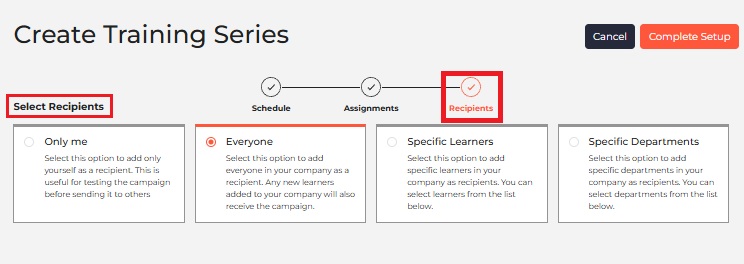
Choose who will be enrolled in this series:
- Only me: Perfect for testing a series before rolling it out company-wide.
- Everyone: Targets all active users across the company.
- Specific Departments: Target particular groups (e.g., Finance, HR).
- Specific Learners: Pick individual users manually.
- Click Complete Setup.
Note:
- Recipient selections apply uniformly across the entire series; you can't assign different departments to individual sessions within a single series.
- If you select Everyone or Specific Departments, any new hires added to the platform will automatically be enrolled into active and upcoming sessions. They won't be backdated into sessions that have already ended.
Step 5. Complete Setup
- Give your series a Series Name and Description.
- Review your schedule, assignments, and recipient summary blocks. Click Edit next to any section if you need to make changes.
- Check your Training Reminders settings at the bottom. (To adjust reminder schedules, go to Settings > Reminders).
- Click Start Series to go live! 🚀
Need more info? See our Training Reminder Notifications guide.
How to Edit a Training Series
How to Edit or Delete:
- Go to Training > Sessions
- Find your series
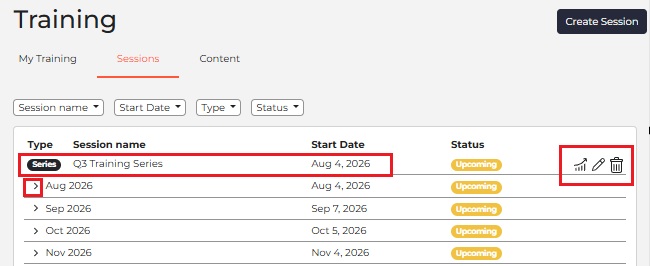
- Click the Pencil icon to edit or the Bin icon to delete.
Editing Rules:
- You can edit or make changes to a series launch date up until 15 minutes before it launches.
- You can edit upcoming sessions within a Training Series, but once a session within the series goes live or completes, it can no longer be modified:
- Completed / In Progress sessions are locked.
- Upcoming sessions have the edit pencil icon and the option to add or remove assignments.
How to Edit the Series Name:
- Go to Training > Sessions.
- Find your series.
- Click the Pencil icon to edit.
- Click the Complete Update button in the top right.
- Rename your series.
- Click Save Changes.
Tracking Training Series Progress & Reports
You can track your performance and performance in real-time via two routes in Session Overview, where you can view real-time progress and completion metrics.
- Go to Dashboard > My Company > scroll down to Training Sessions, and click the chevron (>) next to your series to expand its individual sessions. Click View Session on any sub-session to open Session Overview.
- Go to Training > Sessions > scroll down to your Training Series, and click the chevron (>) next to your series to expand its individual sessions. Click View Session on any sub-session to open Session Overview.
Downloading Reports:
- Series Reports: Go to Training > Sessions. Click the bar chart icon next to your series on the Sessions table to open the dedicated Training Series Report.
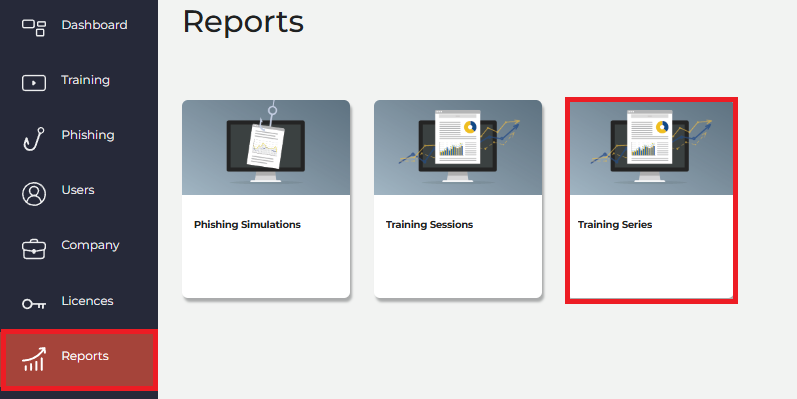
- Report Dashboard: You can also access and download series reports anytime directly from the Reports section > Training Series.
Need a hand? Explore our Training and Troubleshooting guides.
Need to create a single session? Check out our How to Create a Single Training Session guide.
If you run into any hiccups, click the chatbot icon at the bottom right of your screen; our support team is always happy to help! 😊