
Admin Managers' Guide: Set Up Phish Reporter in Google Workspace

The Phish Reporter feature enables Google Workspace users to forward suspicious emails to a designated internal company mailbox. This allows your organisation to monitor reported emails internally and automatically track reported phishing simulations on your Admin Dashboard.
In This Guide:
Step 1: Configure a Reporting Mailbox Using Google Groups
Step 3: Staff Communication Template
Step 1: Configure a Reporting Mailbox Using Google Groups
Create a dedicated reporting group mailbox (if you do not already have one in place) to capture and forward reported emails.
- Sign in to the Google Workspace Admin Console ( admin.google.com).
- Navigate to Directory > Groups.
- Click Create group and enter a descriptive name and email address:
- Group Name: (e.g. PhishReport)
- Group Email: (e.g. phishreport@yourdomain.com )
- Under Access settings:
- In the permission matrix, locate the Who can post row and tick the checkbox under the External column. (This allows learners to forward reported emails to the group address).
- Scroll down to the Allow members outside your organisation setting and toggle the switch to ON.
- Click Save.


- Open your newly created group and click Add members (or select ADD MEMBERS from the left group menu).
- Add our Goldphish reporting address as a member: report@phish.goldphish.com.

Important Note on Gmail's Built-in Button: Gmail’s native "Report Phishing" button is not supported for reporting simulations. Please instruct your users to forward suspicious emails directly to your reporting group address (e.g. phishreport@yourdomain.com ).
Step 2: Test the Setup
To confirm everything is configured correctly, run a quick test simulation:
- Launch a Test: Create a quick phishing simulation targeting 2 or 3 internal team members.
- Perform Actions: Ask the test users to open the email and forward the received simulation email to your internal reporting group address (e.g. phishreport@yourdomain.com ).
- Verify Dashboard Metrics: Go to Phishing > select your Test Simulation to confirm that the Reported percentage and Reported status indicator have updated on your Simulation Overview page.
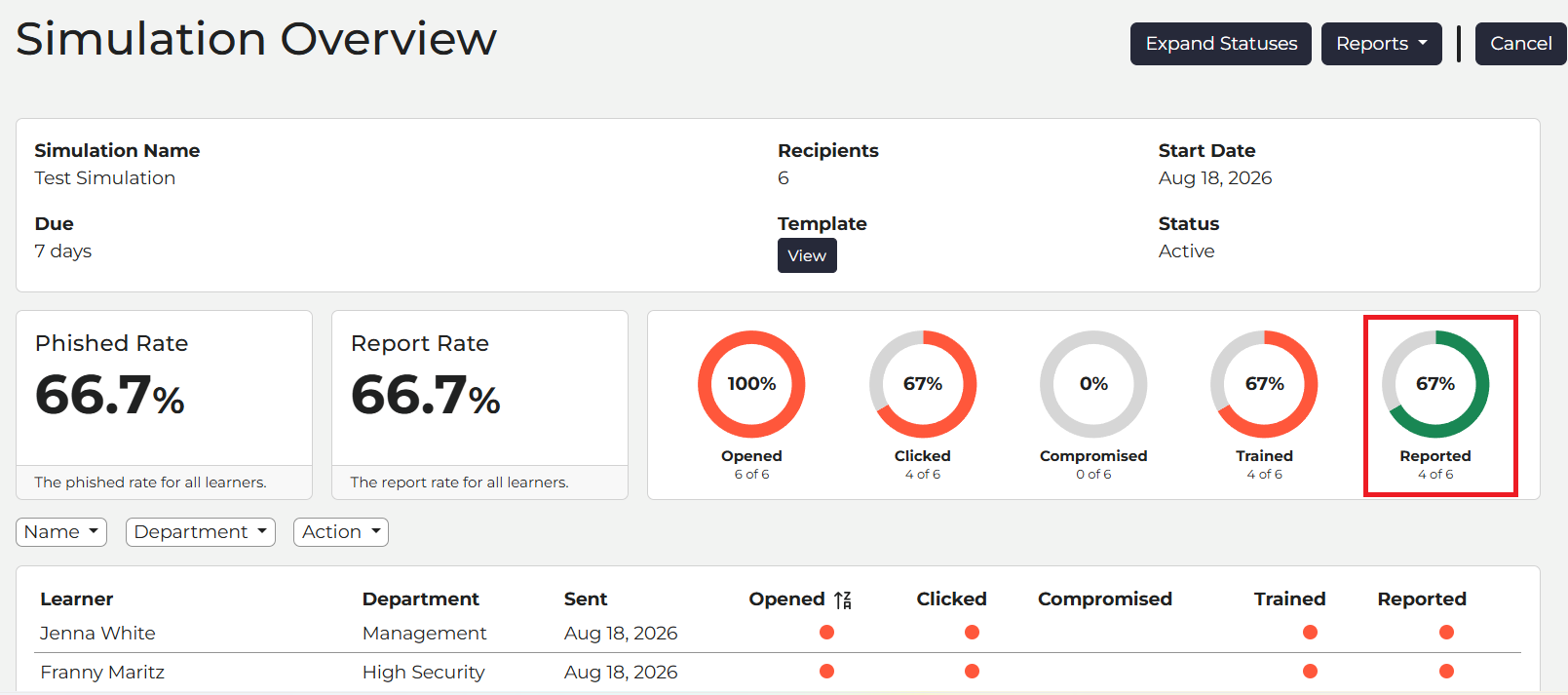
Note: Reported emails usually reflect on your dashboard within 5–10 minutes.
Troubleshooting Email Delivery: If team members don't receive the test simulation email in their inbox, please ask them to check their spam/junk folder.
If it still hasn’t arrived, your IT team may need to double-check your whitelisting setup to ensure Goldphish domains are whitelisted across all security layers and tools. This includes bypassing Anti-Spam, Anti-Virus, Malware Scanning, Link Rewriting/Sandboxing, and URL Defence tools.
For more information, visit our guides:
Staff Communication Template
Subject: See Something Phishy? Report It Immediately
Hi team,
We've made it simple to report suspicious emails and keep our organisation secure!
If you receive an email that looks suspicious or out of the ordinary, simply forward it to: (e.g.phishreport@yourdomain.com )
✔ Forward as many suspicious emails as you like - even if you aren’t 100% sure, we can check for you.
✔ Report simulated phishing emails - reporting our test emails helps improve our team's security score!
⛔ Never click links or open attachments in a suspicious email.
⛔ No need to forward junk/spam -you only need to forward suspicious emails that land in your main inbox.
By reporting suspicious emails, you help protect yourself and your colleagues from cyber threats. If you have any questions, please reach out to the IT helpdesk.
Thank you for helping keep our organisation secure!
Best regards,
IT & Security Team
If you ever get stuck at any point, click the in-app chatbot icon in the bottom-right corner to chat to our support team or drop us an email via support - we're happy to help! 😊