
Admin Managers' Guide: How to Launch a Baseline Phishing Test

Before launching ongoing security awareness training, it is essential to assess your organisation's starting vulnerability level. Conducting an unannounced Baseline Phishing Test gives you an accurate view of your starting risk level if a real phishing attack were to bypass your email filters.
Don't worry -this test isn't designed to catch people out, but rather to establish a clear benchmark to measure future progress!
In This Guide:
- Why Baseline Testing Matters
- Before You Begin: Technical Setup Checklist
- How to Create Your Baseline Phishing Simulation
- Next Steps After Your Baseline Test
Why Baseline Testing Matters
A baseline test measures your team's real-world response to phishing attempts without prior warning. Establishing this initial benchmark helps you:
- Identify potential risk areas across different departments.
- Gather accurate starting metrics (your baseline Phished Rate).
- Track measurable progress as you launch subsequent training sessions and simulations.
- Secure stakeholder buy-in by demonstrating clear, data-backed ROI over time.
Before You Begin: Technical Setup Checklist
Have you tested your technical setup?
Before launching a baseline test across your entire organisation, run a test with 1 or 2 internal team members. Running a small test ensures your IT team has completed all required whitelisting and that simulated emails land safely in inboxes, rather than being blocked by spam filters or security gateways.
For detailed technical setup, see our guides:
How to Create Your Baseline Phishing Simulation
Once you have confirmed your setup through initial testing, follow these steps to launch your baseline test:
- Navigate to Phishing > Simulations on the left menu.
- Click the Create Simulation button in the top-right corner.
- Work through the setup wizard:
- Template: Choose how you want to test your team (Single Template or Random Templates).
- Recipients: Select Everyone to target all users ( learners) across your organisation.
- Schedule: Set your preferred timing (Now, Scheduled, or Random Delivery).
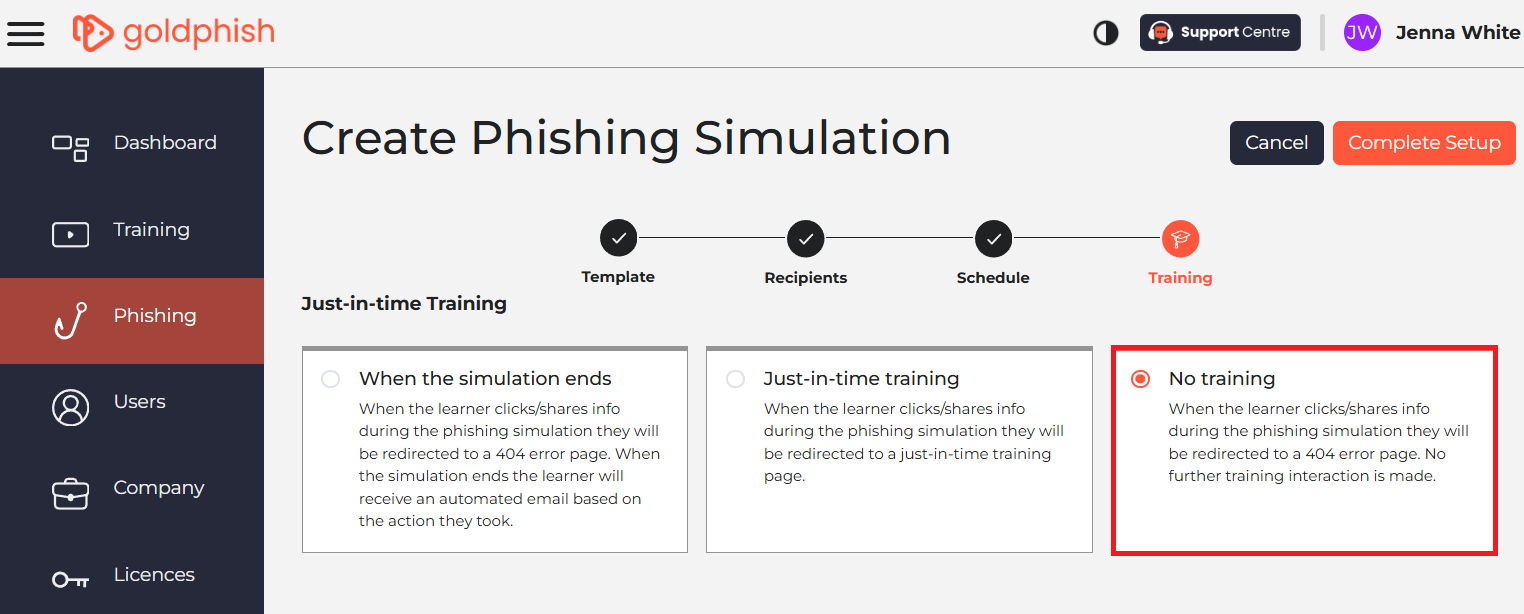
- Training Step: Select No Training.
- Click Complete Setup to review your settings, then click Start Simulation to go live! 🚀
Why Select "No Training"?
Choosing No Training ensures that learners who click a link or submit info are redirected to a standard 404 error page with no immediate feedback or follow-up training emails, allowing you to capture a true baseline without alerting the rest of the organisation.
Next Steps After Your Baseline Test
Once your baseline simulation concludes:
- Go to Reports > Download Test Report.
- Review your Phish-prone Percentage - the percentage of users vulnerable to clicking a real phishing link.
Consider this initial result your organisation’s baseline starting point. Your overall account average takes into account all users, including those who have not yet received a Phishing Security Test (PST). As you conduct ongoing phishing tests, compare future results against this initial metric to track the success of your security awareness training.
Need more information? Explore our guides:
If you ever get stuck at any point, click the in-app chatbot icon in the bottom-right corner to chat to our support team or drop us an email via support - we're happy to help! 😊